
Desk Ergonomics & Workstation Setup: A Practical Guide
A well-set-up workstation is one of the simplest, highest-value things you can do for a comfortable spine when you work at a desk all day. Here's a practical, room-by-the-body guide to monitor height and distance, a chair and lumbar support that fit you, keyboard and mouse position, sit-stand alternation, and the movement breaks that tie it all together — a setup you can build once and benefit from every day at Thrive Chiropractic in Troy, MI.
Why Your Workstation Is Worth Getting Right
If you work at a desk, you spend a huge share of your waking hours in one place — and your body quietly settles into whatever shape that place asks of it. A workstation that fits you supports your spine's natural posture, so you can sit and work for long stretches without much strain. One that doesn't fit slowly pulls you into a slump, a reach, or a forward-craned head, and by mid-afternoon you feel it. The encouraging part is that the setup is entirely in your hands, and it's a one-time effort that pays off every single day.
The goal here isn't perfect posture held by willpower — nobody can sit like a statue for eight hours, and you shouldn't try. The goal is a setup that does the work for you, so your default position is a comfortable, well-supported one. Get the monitor, chair, and keyboard right, add a little movement, and good posture stops being something you have to remember and becomes just how you sit. This guide is part of our wider Wellness & Healthy Living library, and it pairs naturally with our everyday habits and movement guides linked throughout.
Set Your Monitor: Height and Distance
Where your screen sits decides where your head goes, and where your head goes, your neck and upper back follow. A screen that's too low pulls your chin down and your head forward for hours; one that's too far makes you crane toward it. Both are common, and both are easy to fix.
- Height: the top of your screen should be at about eye level, so your gaze falls slightly downward into the middle of it. That keeps your head balanced over your shoulders rather than drifting forward. A laptop almost always sits too low — prop it on a stand or a stack of books and add a separate keyboard.
- Distance: roughly an arm's length away is a good starting point. Close enough to read comfortably without leaning in, far enough that you're not straining.
- Straight ahead: place the monitor squarely in front of you, not off to one side, so you're not turning or twisting toward it all day.
- Glasses matter: if you wear progressive or bifocal lenses, you may need the screen a little lower so you're not tipping your head back to find the reading zone.
Small as it sounds, getting the screen right does more for the neck and upper back than almost any other single change. If a forward-head, screen-down habit already sounds familiar, our guide to tech neck explains the pattern in more depth.
Your Chair and Lumbar Support
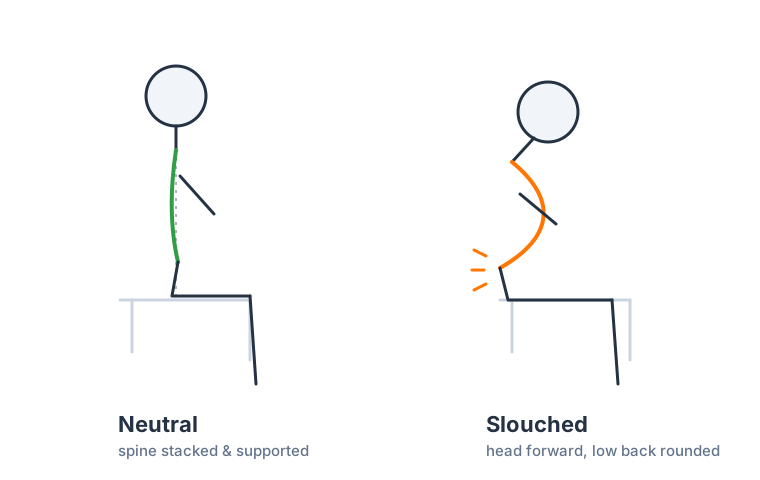
Your chair is where the most hours happen, so it earns the most attention. The job of a good chair is simple: support your lower back's natural inward curve so your muscles don't have to hold it all day.
- Support the lumbar curve. Sit back into the chair so your lower back is supported and keeps its gentle inward curve rather than rounding into a C-shape. If your chair has no lumbar support built in, a small cushion or a rolled towel behind your lower back does the same job well.
- Set the height for your feet. Adjust the seat so your feet rest flat on the floor and your knees sit roughly level with your hips. If your desk forces the chair high, a footrest keeps your feet supported and your pelvis neutral.
- Mind the seat depth. You want a couple of fingers' width between the front edge of the seat and the back of your knees, so the edge isn't digging in or leaving you perched forward.
- Let the armrests help. If they're adjustable, set them so your shoulders can relax and your elbows rest at roughly a right angle, taking some load off your neck and upper back.
You don't need an expensive chair to sit well. A modest chair set up correctly, with a cushion for the lower back, beats a fancy one you've never adjusted.
Keyboard and Mouse Position
Once your chair supports you, the keyboard and mouse decide whether you can actually stay in that support or get pulled forward out of it. The principle is to bring the work to you rather than reaching out to the work.
- Keep them close. Position your keyboard and mouse near enough that you can use them with your upper arms relaxed at your sides and your elbows at roughly a right angle — no reaching forward and rounding your back toward the desk.
- Keep the wrists neutral. Your wrists should stay roughly straight and level as you type, not bent up, down, or off to the side. A keyboard that's too high or a mouse that's too far tends to break that neutral line.
- Mouse beside the keyboard, not out past it. Keeping the mouse right next to the keyboard stops you from repeatedly reaching out to the side, which nags at the shoulder over a long day.
- Relax the shoulders. If you notice your shoulders creeping up toward your ears, that's usually a sign the keyboard is too high or the chair too low — adjust until they can drop.
Alternate Sitting and Standing
The single best thing a workstation can offer isn't a perfect chair — it's the option to change position. Any one posture held for hours loads the same tissues over and over; switching things up spreads that load around and keeps you fresher.
If you have a sit-stand desk, use it the way it's meant to be used: alternate. Stand for a stretch, sit for a stretch, and let the change itself do the good work. A common starting rhythm is to switch every 30 minutes to an hour, adjusting to what feels right for you. The mistake to avoid is treating a standing desk as a command to stand all day — standing continuously brings its own aching legs and lower back, so it's the variety, not the standing, that helps.
No sit-stand desk? You can create the same variety without one: take phone calls standing or walking, stand to read something on paper, and get up regularly to reset. The goal is the same — don't let your body hold one shape for hours on end. Our guide to staying active with a desk job has more ways to weave movement into a seated day.
Movement Breaks Tie It Together
Everything above sets the stage, but movement is what makes it work. Even a flawless setup asks your body to stay fairly still, and stillness is what stiffens you up. The fix is small, regular movement — and it's genuinely the highest-value habit in this whole guide.
- Break up stillness every half hour. Set a quiet reminder to stand, walk a few steps, and gently roll your shoulders or arch your back every 30 minutes or so. It only takes a minute, and that regular interruption keeps a workday's load from accumulating.
- Build movement into the day's flow. Refill your water across the room, take the stairs, walk over to a colleague instead of messaging. These add up without needing a dedicated break.
- Reset your posture, don't just endure it. A few gentle stretches — a shoulder roll, a gentle back extension, a look side to side — undo the forward-leaning shape a screen encourages.
For simple habits you can carry beyond the desk and into the rest of your day, see our everyday posture tips — the two guides are designed to work together.
When Setup Isn't Enough
A well-set workstation and a habit of moving will keep most people comfortable through a long workday. But ergonomics is support, not a cure-all, and sometimes discomfort is telling you about more than a chair. If aching keeps returning despite a good setup, if it's specific and persistent, or if it interferes with your sleep or the things you enjoy, that's a reason to have it looked at rather than keep adjusting knobs.
At Thrive Chiropractic in Troy, MI, that can mean a hands-on assessment of how you move and where things are getting stiff, massage therapy to release the tension a desk day builds up, and honest coaching on the setup and movement habits in this guide. When foot mechanics quietly add uneven load up the chain, custom orthotics may be part of the conversation, and for teams, our workplace wellness program brings this kind of guidance on-site. Dr. Rubinstein tailors what makes sense to your body and your workday rather than handing everyone the same checklist.
Frequently Asked Questions
Setting up a workstation raises practical questions — how high the monitor should be, the best chair setup, whether a standing desk beats sitting, how often to take breaks, and whether a good setup can head off back and neck pain. Those are answered in detail in the FAQ section on this page.
If a long workday leaves you stiff no matter how you arrange things, schedule a visit with Dr. Rubinstein at Thrive Chiropractic in Troy, MI. You'll get a thorough look at how your body moves, honest guidance on your setup, and a practical plan to stay comfortable. You can also explore the wider Wellness & Healthy Living library, including everyday posture tips and sleep posture and your spine.
Healthy Spine & Wellness Guide (PDF)A one-page take-home guide: everyday habits for a healthier spine, and the warning signs worth getting checked.PDFThis article is for general education and is not a substitute for professional medical advice, diagnosis, or treatment. Always consult a qualified healthcare provider about your specific situation.
Frequently Asked Questions
How high should my monitor be for good posture?
As a starting point, the top of your screen should sit at about eye level so your gaze falls slightly downward into the middle of it, and it should be roughly an arm's length away. That lets your head balance over your shoulders instead of drifting forward toward a screen that's too low or too far. If you wear progressive or bifocal lenses you may need it a touch lower to avoid tipping your head back — comfort is the real test, so adjust until your neck feels relaxed.
What is the best chair setup for working at a desk?
Aim for a chair that supports your lower back's natural inward curve, set at a height where your feet rest flat on the floor and your knees sit roughly level with your hips. Sit back into the support rather than perching on the edge. If your chair has no lumbar support, a small cushion or rolled towel behind your lower back does the same job. The point is to let the chair hold your spine's shape so your muscles aren't doing it all day.
Is a standing desk better than sitting?
A sit-stand desk helps mainly because it lets you change position, and variety is what your spine likes best. Standing all day has its own downsides and can create aching legs and lower back, so the goal isn't to stand constantly but to alternate through the day. Switching every half hour to an hour spreads the load around instead of concentrating it in one posture, which is the real benefit.
How often should I take breaks when working at a desk?
A good rule of thumb is a brief movement break every 30 minutes or so — stand up, walk a few steps, and roll your shoulders or gently arch your back to reset. It doesn't need to be long; even a minute of moving interrupts the steady, one-position load that a workday otherwise builds up. Pairing that with alternating sitting and standing keeps you from stiffening in any single posture.
Can a good workstation setup prevent back and neck pain?
A supportive setup removes a large, constant source of daily strain, so it genuinely helps many people feel more comfortable and stay looser through the workday. It's honest to call it support rather than a guarantee, though — no chair prevents every ache, and movement still matters more than any single piece of gear. If pain keeps returning despite a good setup, that's worth having looked at, because something beyond the workstation may be driving it.
Ready to get evaluated at Thrive Chiropractic?
Dr. Rubinstein will assess what’s really going on and build a care plan tailored to you. Reach out and we’ll get you scheduled.
2133 Crooks Road | Troy MI 48084